Uploading &
managing your
content.
A working guide to setting up your profile, preparing your imagery, video and music, planning what to publish, and building workouts and programmes inside the Wellcast Creator Portal.
Explore the playbookGet your profile ready to launch.
To ensure users have a great first experience, trainer profiles are only made visible in the app once a minimum amount of content has been added. We recommend preparing your imagery and first workouts before setting up your profile so you can launch with a strong content library from day one.
BEFORE YOU'RE VISIBLE, COMPLETE:
- Trainer profile
- Profile photo (avatar)
- Banner image
- Required profile information
- At least 3 published workouts
BEFORE YOU START, PREPARE:
- Your profile image and banner image
- Your workout thumbnails
- Videos exported using recommended settings
- Clear naming conventions from the beginning
- Workouts uploaded before building programmes
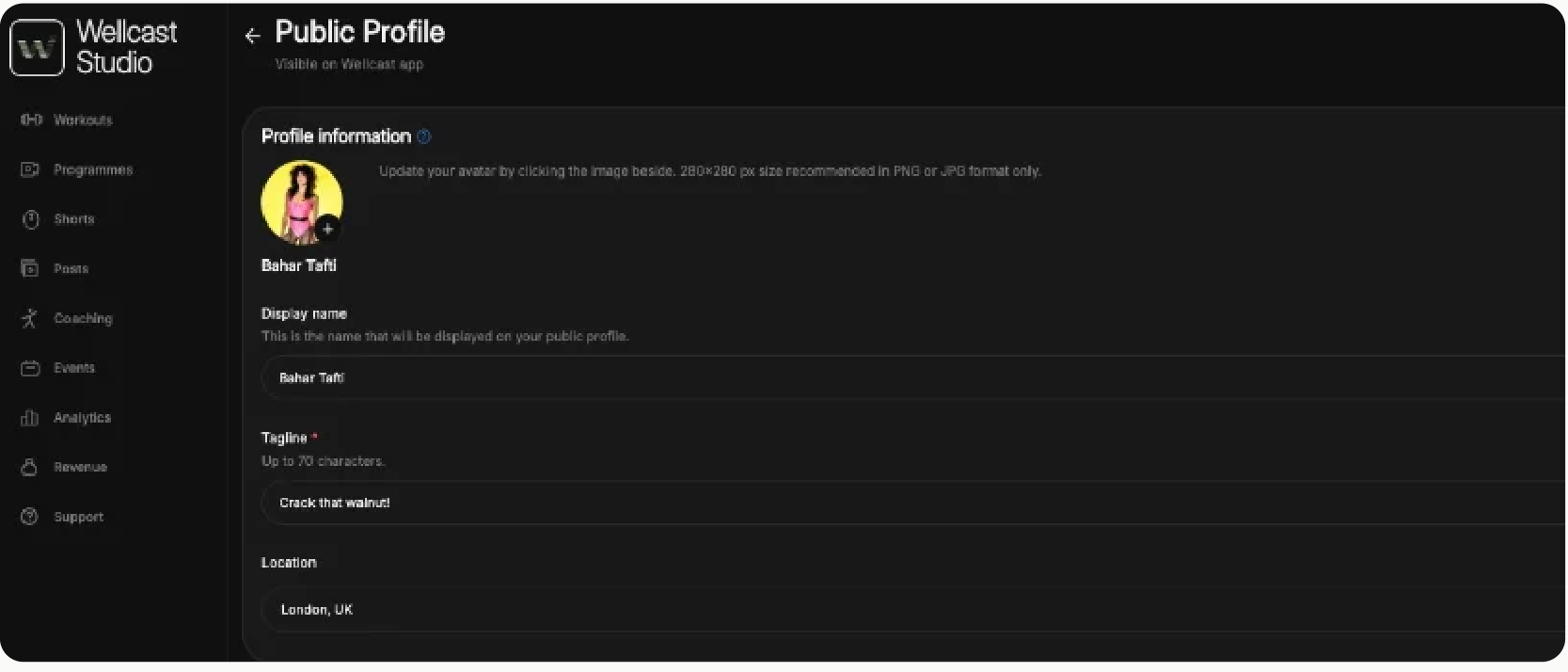
Your profile is your identity.
Your avatar appears throughout the platform; your banner sits at the top of your profile page. Keeping both - plus your colours and thumbnails - visually consistent helps users recognise your content at a glance.
Profile photo (avatar)
- FILE TYPE
- JPG, JPEG or PNG
- SIZE
- 1200 × 1200 px
- SHAPE
- Square
- MAX SIZE
- 3 MB
- Use a high-quality image, face clearly visible
- Bright, clean lighting; avoid blurry screenshots
- Keep backgrounds simple and uncluttered
- Keep important banner detail towards the centre
Banner image
- FILE TYPE
- JPG, JPEG or PNG
- SIZE
- 2400 × 900 px
- ORIENTATION
- Landscape
- MAX SIZE
- 8 MB
- Avoid placing text within the banner image
- Ensure banner complements your avatar and thumbnails
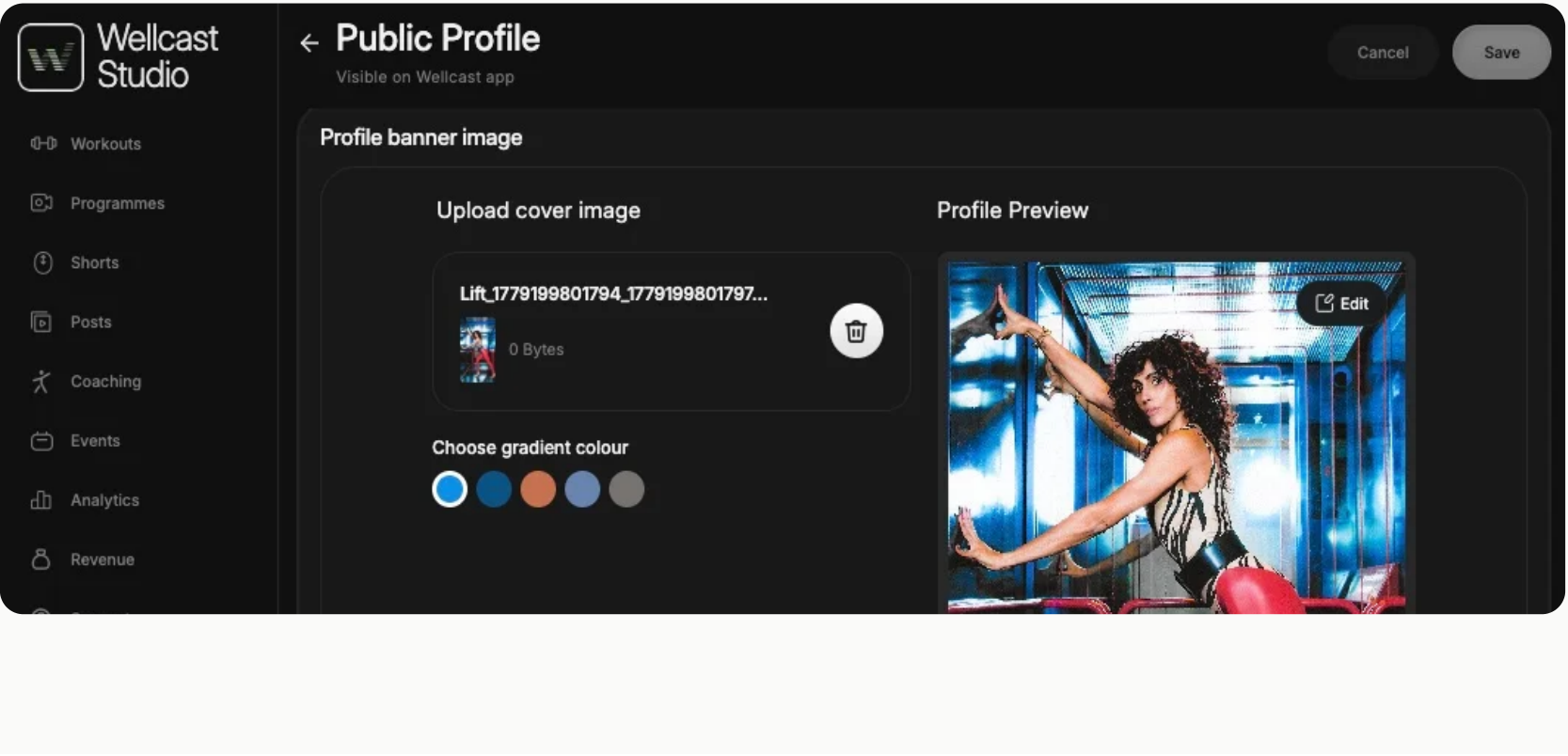
Make your content instantly recognisable.
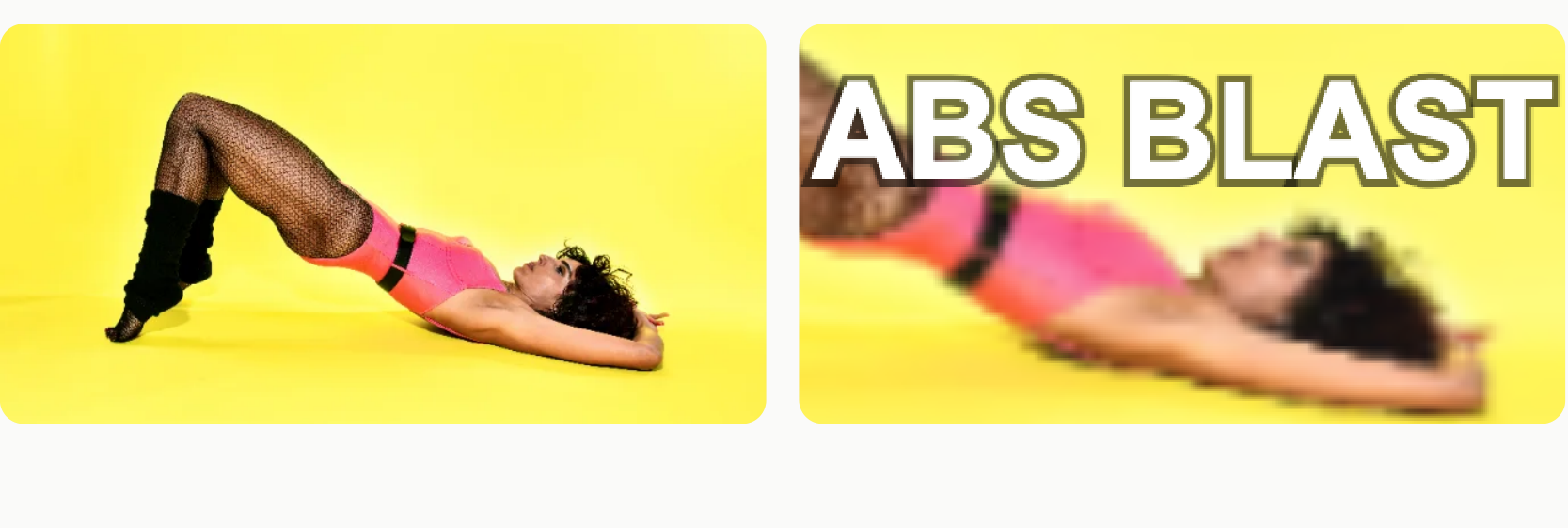
Workout thumbnails
- FILE TYPE
- JPG, JPEG or PNG
- RECOMMENDED SIZE
- 1920 × 1080 px
- MINIMUM SIZE
- 1280 × 720 px
- ASPECT RATIO
- 16:9
- MAX SIZE
- 5 MB
DO
- Keep important detail centred
- Leave space for overlays and titles
- Use professional workout photography
AVOID
- Faces close to image edges, text inside thumbnails
- Video stills - often blurry or soft
- Inconsistent visual styles across a series
Export your videos correctly.
These settings help ensure faster uploads, smoother playback and better streaming performance for everyone.
Full-length workouts
- FORMAT / CODEC
- MP4, H.264
- RESOLUTION
- 1080p
- FRAME RATE
- 30/60fps
- ORIENTATION
- Landscape
- REC. SIZE
- 250 MB – ~1 GB
- MAX UPLOAD
- 2 GB
Shorts & short-form
- FORMAT / CODEC
- MP4, H.264
- RESOLUTION
- 1080×1920 (9:16)
- LENGTH
- 15–90 sec
- MAX SIZE
- 250 MB
PLEASE AVOID
- 4K exports, raw/uncompressed files, excessively large uploads
COMPRESSION TOOLS
- HandBrake - Fast 1080p30, RF 22
- Shutter Encoder - H.264, CQ 22
Bring your best work with you.
If you already have a library, launching on Wellcast is a curation exercise rather than a filming one. We recommend arriving with around 30 workouts and at least one programme built from them - enough range for users to understand how you train, and enough structure for them to commit to a journey.
- RECOMMENDED VOLUME
- Up to 30 workouts
- DURATION MIX
- A spread across 10, 15, 20, 30 and 45 minutes
- MAXIMUM LENGTH
- 60 minutes per workout
- PROGRAMMES
- At least one, built from the workouts you upload
CHOOSING WHAT TO UPLOAD
- Lead with your most recent and highest-quality work - this is your shop window
- Sessions that have performed well elsewhere are a safe first impression
- Use this as a chance to give strong content a second life where it didn't find the audience it deserved
- Leave out anything dated, low-resolution or off-brand
BUILD A RANGE
- Vary the length so there's something for a busy weekday and something for a Sunday
- Your range is what communicates your training style, your expertise and your approach
- Cover the formats you're known for rather than every format that exists
- Nothing over 60 minutes - that's the upload limit on Wellcast
Building your library from scratch.
The destination is the same - around 30 workouts and at least one programme - but the route is a production plan rather than a curation exercise. Remember you only need three published workouts to become visible, so you can go live early and build towards 30.
YOUR SPACE AND SET-UP
- Pick a location where you control both the light and the sound
- Light from the front - avoid windows or bright sources behind you
- Make the set-up repeatable: same camera position, same framing, same marks on the floor
- Photograph the space and settings so you can rebuild it next time
- Keep wardrobe and background consistent across a series
BEING ON CAMERA
- Your first few takes are the pancakes you throw away - expect it, and film them anyway
- Talk to one person, not an audience
- Name the move, give the cue, then count - in that order
- Review one take early, adjust once, then keep rolling. Don't watch back every take
- You will get the hang of it; the fifth session is always easier than the first
BEFORE EACH SHOOT DAY
- Run sheet written: every workout, in order
- Batteries charged, cards cleared, storage backed up
- Record a short test clip and check sound before committing
- Wardrobe changes ready to signal a new session
- Thumbnail stills shot on the same day, in the same light
Clear your music before you film.
You are responsible for securing every right to the music in your content - including the right to distribute it on a third-party app like Wellcast. This sits in your contract, so treat the guidance below as a practical heads-up rather than the full terms.
IF YOU'RE FILMING NEW CONTENT
- Film with your voice only - no music playing in the room
- Keep a high-resolution master with your audio saved separately
- Music can be layered on later if you have the rights; it can't be stripped out afterwards
- Mind background music from a gym sound system or a neighbouring space
IF YOU HAVE EXISTING CONTENT
- Check what your licence actually covers before uploading
- Look for third-party app or platform distribution rights specifically
- Where you can't confirm it, re-export voice-only or leave that workout out
- Not sure? Ask us at mitra@wellcast.life before you publish
From upload to publish.
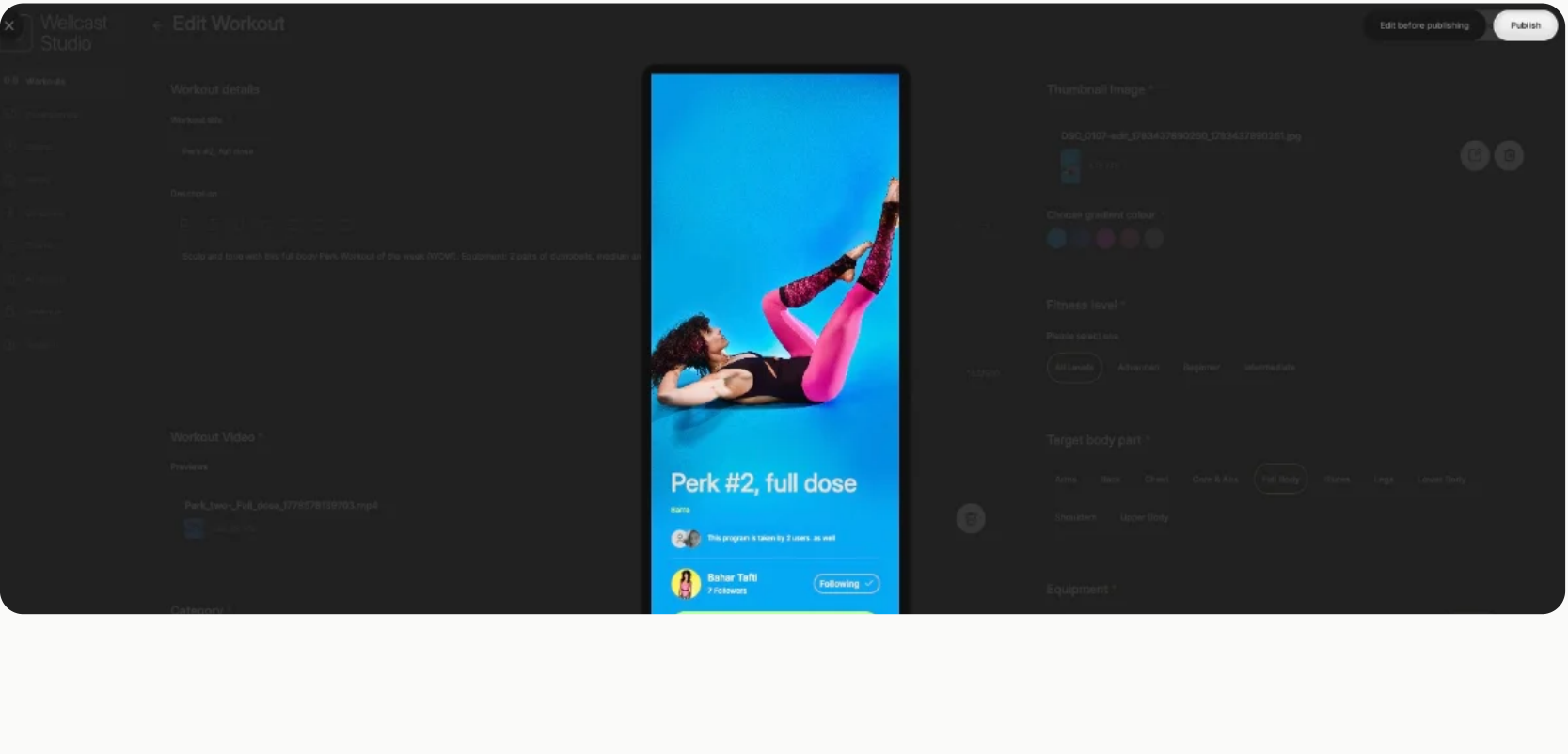
When uploading a workout you'll upload your video and thumbnail, add a title and description, then select tags, categories, fitness level, focus area and equipment. All required fields must be completed before publishing - you can save drafts and preview at any point.
GOOD TITLE EXAMPLES
- Lower Body Strength 01
- HIIT Cardio 03
- Morning Mobility – Hips & Spine
- Pilates Flow – Beginner
AVOID
- Workout 1
- Untitled
- Full Body
- Generic repeated titles
- "Week 1", "Day 3" or other programme-only labels - every title needs to stand alone outside a programme too
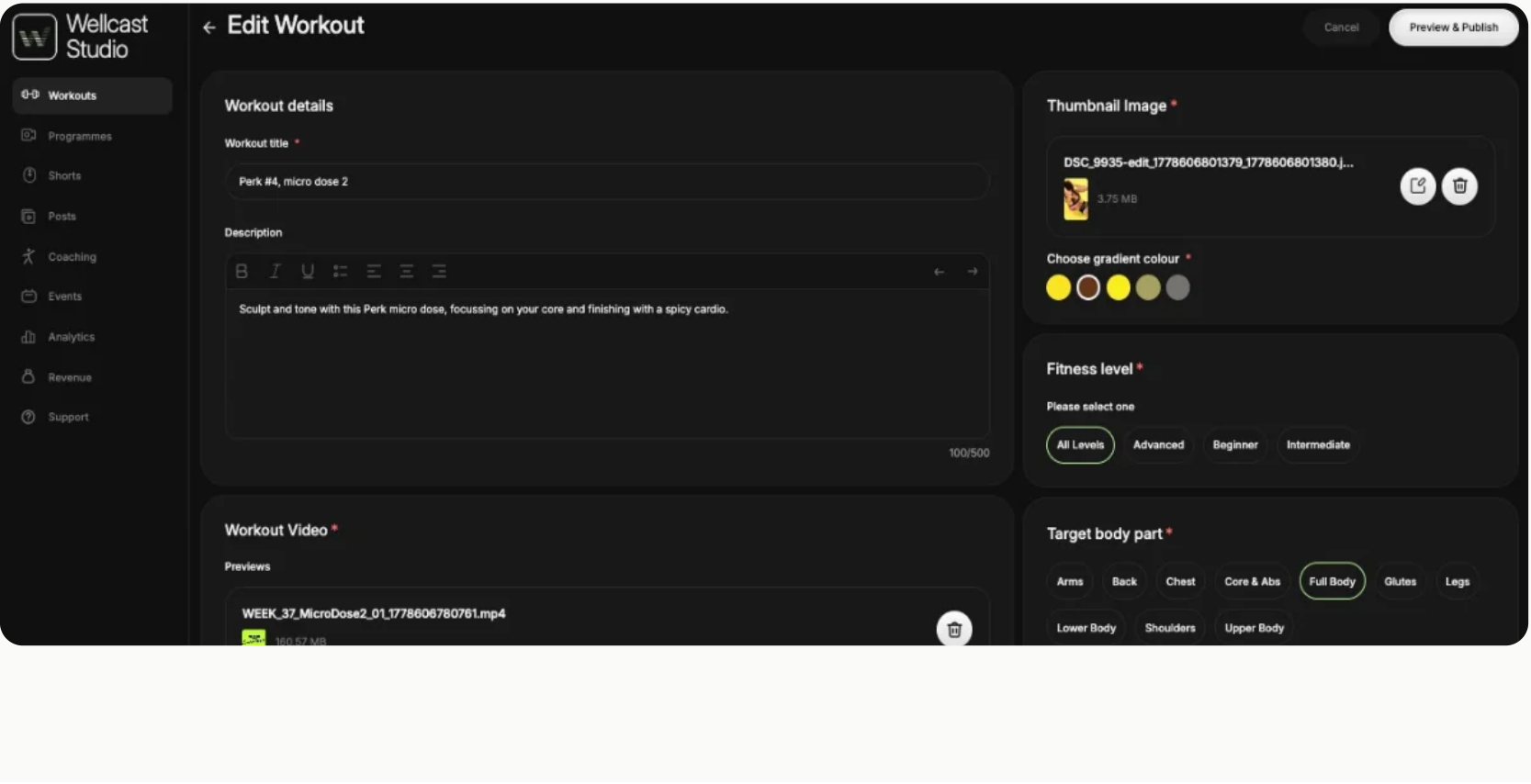
Keep your library easy to navigate.
CONTENT ORGANISATION
- Consistent naming conventions
- Group similar workouts into series
- Number workouts where appropriate
- Keep thumbnails visually consistent
BEFORE PUBLISHING, REVIEW
- Thumbnail appearance & image crops
- Title, description, tags
- Overall presentation
Turn workouts into a journey.
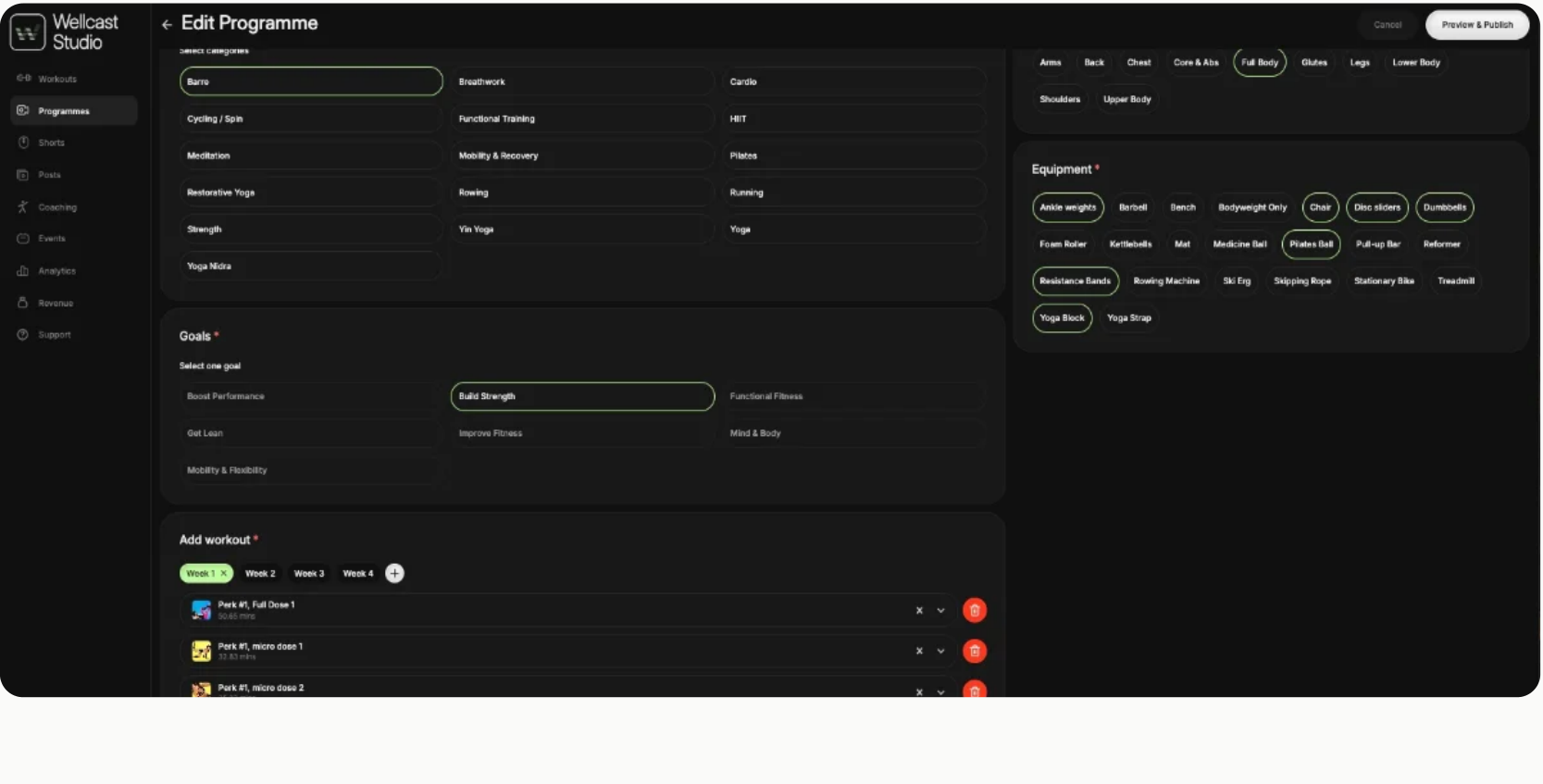
Programmes let you organise workouts into structured training journeys. Within the programme builder, you can create weeks, search existing workouts, drag them into weeks, and organise progression with clear titles and descriptions.
BEST PRACTICES
- Keep programme names clear
- Maintain consistent branding
- Ensure progression is logical
- Consider the overall user journey
Ready to hit publish.
FILMING
- Landscape orientation
- Movements stay fully visible
- Stable framing, good lighting
AUDIO
- Use a microphone where possible
- Minimise background noise
- Keep instructions clear
ENVIRONMENT
- Keep spaces visually clean
- Avoid distracting backgrounds